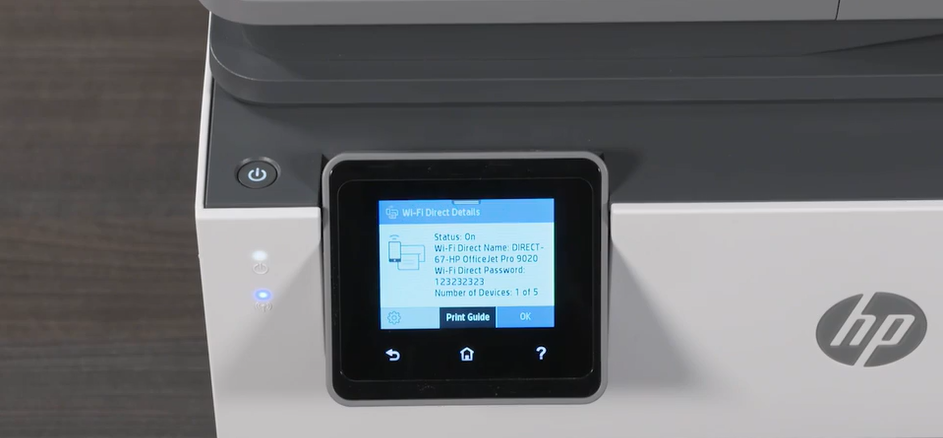
Wireless printing has become an essential feature for homes, offices, and small businesses. Instead of relying on USB cables or connecting your printer to a single computer, WiFi connectivity allows multiple devices to print from anywhere on the same network. If you recently purchased an HP printer or want to switch from a wired setup to a wireless one, learning how to connect HP printer to WiFi is an important step.
HP printers are designed to make wireless setup easy, but the process can vary depending on the printer model and device you are using. Some printers use the HP Smart app, while others allow configuration directly from the printer control panel or through a USB setup.
This complete guide will explain how to connect HP printer to WiFi using several proven methods. By following the instructions carefully, you can connect your printer quickly and start printing wirelessly.
Why You Should Connect Your HP Printer to WiFi
Before learning how to connect HP printer to WiFi, it helps to understand the benefits of wireless printing.
The biggest advantage is convenience. When your printer is connected to WiFi, multiple devices can use it without needing a direct cable connection. Laptops, smartphones, tablets, and desktops can all send print jobs to the same printer.
Wireless connectivity also enables mobile printing. Many HP printers allow you to print directly from apps, email, or cloud storage services. This means you can print documents even if your computer is not physically connected to the printer.
Another benefit is flexible placement. Because there is no need for a USB cable, you can place your printer anywhere within the WiFi network range.
Method 1: How to Connect HP Printer to WiFi Using HP Smart App
The easiest way to learn how to connect HP printer to WiFi is by using the HP Smart app. This application is designed to guide users through the entire setup process.
Step 1: Prepare the Printer
Turn on your HP printer and make sure it is placed close to your WiFi router during setup. This helps ensure a strong signal while configuring the connection.
If the printer was previously connected to another network, resetting the wireless settings may help. Many HP printers allow this by pressing and holding the Wireless and Cancel buttons for several seconds.
Step 2: Install the HP Smart App
Download the HP Smart app on your device. It is available for:
- Windows computers
- Mac computers
- Android phones
- iPhones and iPads
After installation, open the app and follow the on-screen instructions.
Step 3: Add the Printer
In the HP Smart app dashboard, click Add Printer or Set Up a New Printer.
The app will automatically search for nearby HP printers that are in setup mode.
Select your printer when it appears in the list.
Step 4: Connect the Printer to WiFi
The application will ask you to choose your wireless network. Select your WiFi name (SSID) and enter the network password.
Once the information is confirmed, the printer will connect to the WiFi network.
Step 5: Complete Installation
The HP Smart app may install necessary drivers and finalize the configuration automatically. After the process finishes, your printer will be ready for wireless printing.
This method is the most recommended solution when learning how to connect HP printer to WiFi.
Method 2: How to Connect HP Printer to WiFi Using the Control Panel
Many modern HP printers include a touchscreen display that allows direct wireless setup without using a computer.
Step 1: Open Wireless Settings
Turn on the printer and access the control panel display.
Navigate to Settings, Network, or Wireless Settings.
Select Wireless Setup Wizard.
Step 2: Choose Your Network
The printer will scan for available wireless networks.
A list of WiFi networks will appear on the screen. Select your home or office network.
Step 3: Enter the WiFi Password
Use the printer’s touchscreen keyboard to enter the WiFi password.
Make sure the password is entered correctly since WiFi passwords are case-sensitive.
Step 4: Confirm the Connection
Once the password is entered, the printer will attempt to connect to the network. After a few seconds, the display should confirm a successful connection.
This is another reliable way to understand how to connect HP printer to WiFi without installing additional software.
Method 3: How to Connect HP Printer to WiFi Using WPS
WiFi Protected Setup (WPS) is a quick method that connects devices without typing the password manually.
However, this method only works if your router supports WPS.
Step 1: Press the WPS Button on the Router
Locate the WPS button on your wireless router and press it. The indicator light will start blinking.
Step 2: Activate WPS on the Printer
Within two minutes, press and hold the Wireless button on your HP printer.
The printer will start searching for a WPS connection.
Step 3: Wait for the Connection
After a short time, the printer will automatically connect to the WiFi network. The wireless indicator light will stop blinking once the connection is successful.
Using WPS is one of the fastest ways to complete the process of how to connect HP printer to WiFi.
Method 4: How to Connect HP Printer to WiFi Using USB Setup
Some HP printers require a temporary USB connection during the first wireless setup.
Step 1: Connect the Printer to Your Computer
Use a USB cable to connect your HP printer to a computer.
Step 2: Install Printer Software
Download the official HP printer software from the HP support website and run the installation.
During installation, choose Wireless Connection as the setup option.
Step 3: Enter Network Information
The software will prompt you to select your WiFi network and enter the password.
Once the setup is complete, the printer will save the wireless settings.
Step 4: Remove the USB Cable
After the printer connects successfully, you can disconnect the USB cable and start printing wirelessly.
How to Check If Your HP Printer Is Connected to WiFi
After completing the setup, it is important to confirm the connection.
You can verify the connection in several ways:
- Print a Network Configuration Page from the printer settings.
- Check the wireless indicator light on the printer.
- Send a test print from your computer or smartphone.
- View the printer status in the HP Smart app.
If the printer responds to print jobs, it means the WiFi setup was successful.
Troubleshooting HP Printer WiFi Connection Issues
Sometimes users experience issues when trying to learn how to connect HP printer to WiFi. Fortunately, most problems can be fixed easily.
Restart Devices
Restart the printer, router, and computer. This simple step can resolve temporary network issues.
Move the Printer Closer to the Router
Weak signals may prevent the printer from connecting. Place the printer closer to the router during setup.
Check WiFi Password
Make sure the WiFi password is entered correctly.
Reset Printer Network Settings
If the printer fails to connect, reset its wireless settings and repeat the setup process.
Update Printer Drivers
Outdated drivers can cause connectivity issues. Installing the latest drivers often resolves the problem.
Tips for Maintaining a Stable Wireless Printer Connection
Once you understand how to connect HP printer to WiFi, maintaining a stable connection is equally important.
Keep your printer within range of the router to ensure strong signal strength. Avoid placing the printer near devices that may cause interference, such as microwaves or cordless phones.
Updating the printer firmware periodically can also improve performance and fix bugs. Using the HP Smart app can help you monitor the printer status, ink levels, and network connectivity.
Conclusion
Learning how to connect HP printer to WiFi allows you to take full advantage of modern wireless printing technology. Whether you use the HP Smart app, the printer control panel, WPS, or a USB setup, the process is generally simple and quick.
Once your printer is connected to WiFi, you can print from multiple devices without the inconvenience of cables. This improves productivity and makes printing more accessible for everyone in your home or office.
By following the methods outlined in this guide and troubleshooting any connection issues, you can successfully set up your HP printer for reliable wireless printing.